


FAQ's - BACKUP QUESTIONS
Q1: What files can Depositit back up?
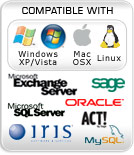
Q2: Can I backup my Mac and any other operating system?
Q3: How do I know my files are being backed up?
Q4: Can Depositit backup open files?
Q5: Does my machine need to be on for Depositit to backup?
Q6: Can I use my computer whilst a backup is running?
Q7: How can I check the amount of data I need to back up?
Q8: Could a file containing a virus infect other data on the Depositit servers?
Q9: Can I backup Microsoft Windows Vista with Depositit?
Q1: What files can Depositit back up?
A: Depositit will backup all data files including emails, word / excel, digital images, pdf's,
scanned docs, music files as well as databases (Exchange, Access, SQL, Oracle). We do not suggest backing
up program files or operating systems, however you can backup your System State.
Q2: Can I backup my Mac and any other operating system?
A: YES. Register for an account and once you have paid you will be asked which software
you wish to download (for Mac, Windows or Linux).
Q3: How do I know my files are being backed up?
A: Every time Depositit backs up you will be sent a confirmation e-mail.
You can also open the software and check the client log at any time.
Q4: Can Depositit backup open files?
A: Locked open files such as Outlook (.pst), SQL and Access databases must be
closed prior to backing up. Word or Excel documents that are open will be backed up
(the last saved version will be stored). Depositit provides a plug-in to backup MS Exchange.
Q5: Does my machine need to be on for Depositit to backup?
A: Yes, the system must on for automatic backups to take place. If the computer is off, the backup
will run the next time it's switched on. You can also backup manually at any time.
Q6: Can I use my computer whilst a backup is running?
A: Yes, whilst Depositit runs in the background you can continue to use your computer without
affecting the backup. The only exceptions are if you are backing up Outlook or other
Database files, these programs must be closed whilst Depositit is backing them up.
Q7: How can I check the amount of data I need to back up?
A: Windows: Either from your computer or within the Depositit software, select the file or folder you wish
to back up and right click on it. The properties for this file/folder will now appear showing how big it is.
MAC: Either from your computer or within the Depositit software, select the file or folder you wish to back up and control-click on it. The properties for this file/folder will now appear showing how big it is.
Q8: Could a file containing a virus infect other data on the
Depositit servers?
A: No, you cannot receive a virus from any infected file that may be backed up to Depositit
because we do not open any files that are uploaded.
Q9: Can I backup Microsoft Windows Vista with Depositit?
A: YES, When you have installed the Depositit software onto your computer:
1. Right click on the desktop shortcut to Depositit and select 'Run
as administrator'
2. Set up your backups in the normal way

Application Error
An error has occurred in the program
Can't open /www/testdit/documents/includes/rand_testimonial.html: No such file or directory
Application Error
An error has occurred in the program
Can't open /www/testdit/documents/includes/rand_press.html: No such file or directory